Stimson uses a web-based tool called vMix call to bring remote speakers into our events. This guide can help you feel comfortable with vMix call if you have not used it before. You can expect that it will feel familiar and easy to use and does not require you to install anything.
vMix call will work on any current or recent versions of Chrome, Firefox, or Safari in Windows, macOS, or iOS.
Speakers will receive a link in email
Event speakers will receive an email with the subject “Stimson Event Speaker Link” from either Stimson Center Events Robot or your staff point of contact. If you have not received it by the day before the event, reach out to your Stimson contact.
Your link will look like: https://advanced.vmixcall.com/call.htm?Key=XXXX&Name=YourName
This link is just for the speaker. Do notshare it with anyone else. Do notvisit it before your are scheduled to join the event.
Joining the event
When you are schedule to join the event — usually about 20 minutes before it begins — go to the link provided using the computer you will be using to participate in the event.
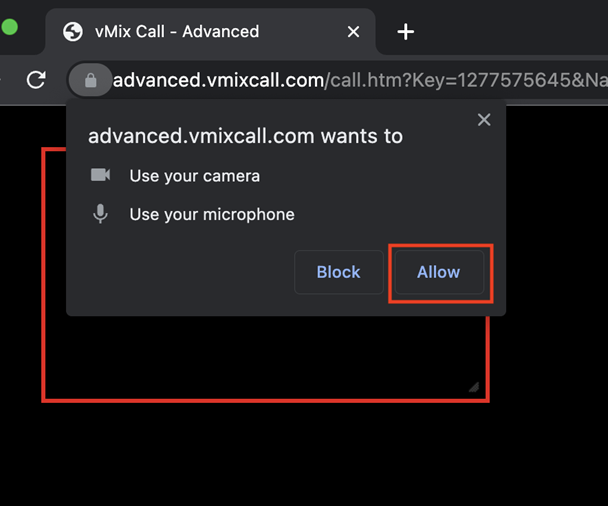
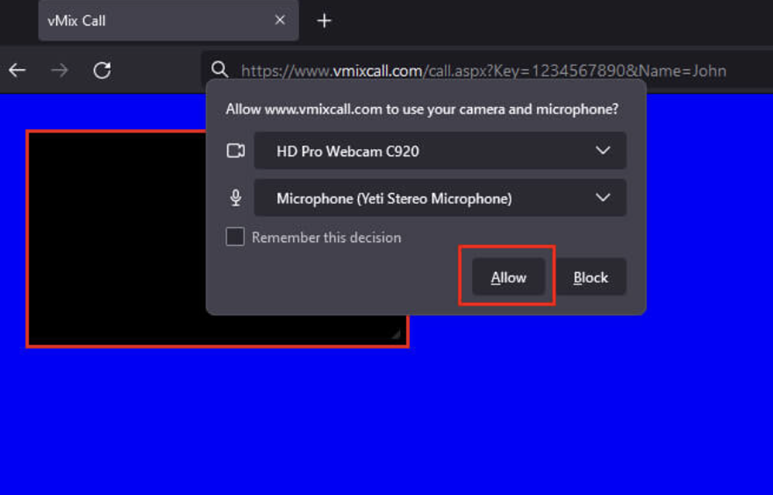
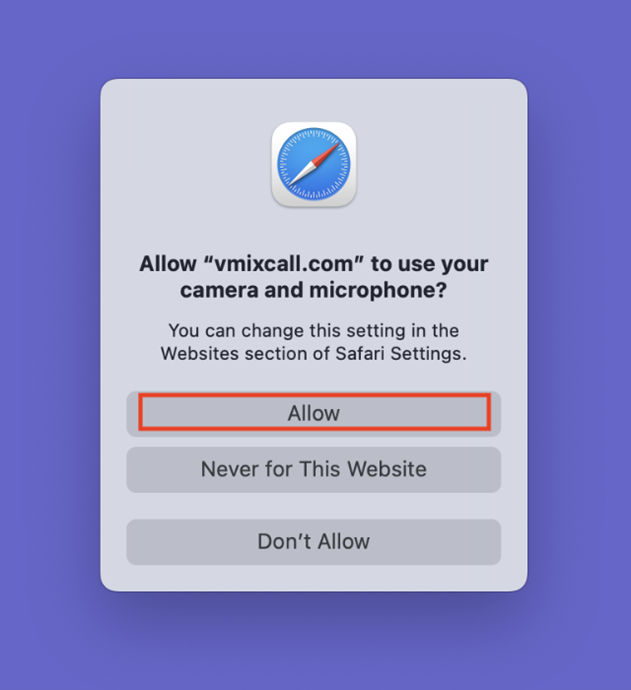
Important: The website will ask you for permission to use your camera and microphone.
Click Allow. This allows advanced.vmixcall.com to use your camera and microphone. If you do not, no one will be able to see or hear you!
Click "Allow"
Click "Allow"
Click "Allow"
What is on my screen?
Camera preview. The box in the top left corner of the screen is your camera’s view. this is what you are sending into the event. If you do not see yourself in that box, your camera may be off/disconnected.
Event video stream. The rest of the screen shows the event video stream. This is what is currently being shown to the event’s online audience. When you join, expect to see a black or blue screen or a card with the title of the event.
User controls. The bar at the bottom of the screen let you end the call, see the chat, turn on/off mic and camera, etc.
User Controls
These user controls should be familiar to anyone who has used Zoom or similar programs.
User controls in vMix Call
Hang up. Ends the call. Do not click until the event is over!
Producer/Speaker Chat. Click to show/hide a chat window that lets you communicate with the event producer and/or other remote speakers as a group. Nothing you type here will be seen by the audience. We recommend you keep it open during the event.
Camera & Microphone controls. You can turn off your camera or mute your microphone.
Greenmeans you can be seen/heard.
Red means you are muted/not visible.
Share Screen. See detail below.
Greenmeans you are sharing your screen.
Red means you are not.
Camera Preview. Click to hide/show the preview of your camera in the top left corner of your screen.
Full Screen. Expands the vMix browser window to full screen if you want to remove distractions.
Settings. Lets you change your camera or microphone if, for example you have a good microphone or separate webcam which you prefer to use.
Sharing your screen or slides
You can share your screen just like in video meeting software.
First, click the button to share your screen:
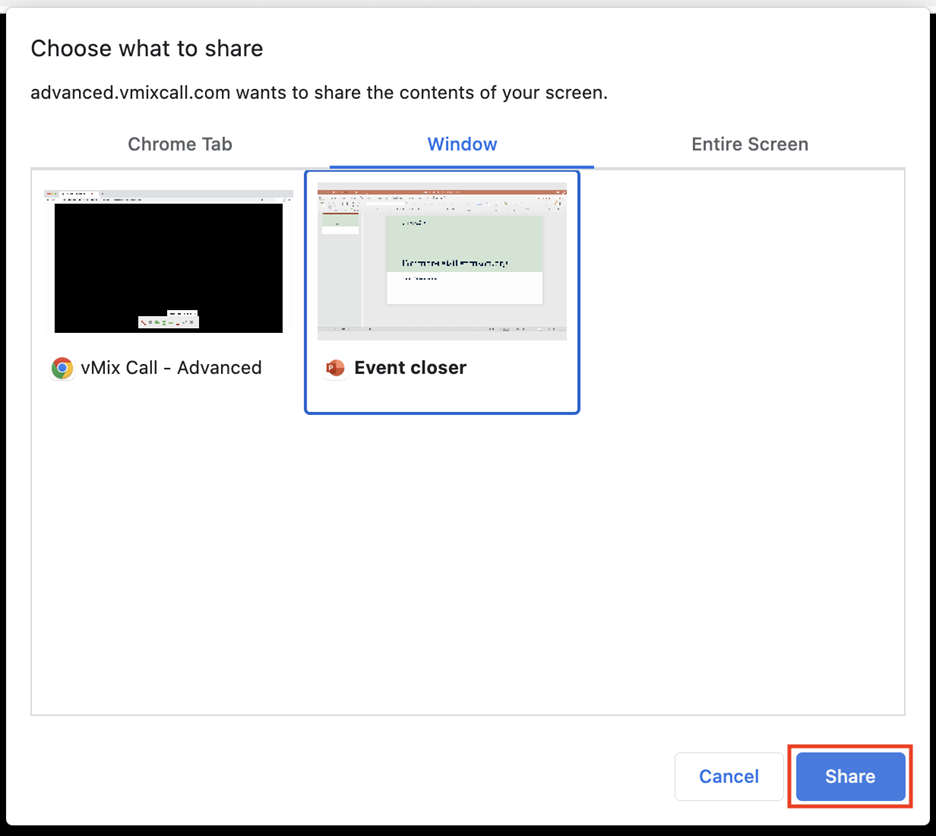
Then, choose what to share. You can share a browser tab, a specific window/program, or your entire screen. If you are giving a PowerPoint presentation, we recommend sharing the entire screen, not just your Powerpoint window.
Is it working? Your camera preview box in the top left of your screen will change to show what you are sharing and the Share Screen button will turn green.
When you are done: Click the greenScreen Share button to stop sharing. It will turn red to indicate that screen sharing is off.
Be careful: Some web browsers will show a separate “Stop Sharing” button/item on your screen. Click that and the green Screen Share button in vMix Call to end your screen share.
Bottom line: If the screen share button is green or the preview window still shows a shared screen, you are still sharing your screen.
Producer’s talk-back line
Just like on a TV appearance, defore or during the event, the producer may break break into your audio line and speak to you directly. When this happens, the audience can not hear you or the producer. But the producer has to initiate this, so the best way to communicate with the producer is using the chat window.